How to Record Earnings and Payments
For growers and funders, Greenstand's online Earnings tool records payments due and payments made.
In a typical case...
1. Growers plant trees and submit capture records by phone.
2. Greenstand consolidates multiple captures into a single record and calculates the earnings due for the lot.
3. Funders download earnings records, make payments to growers, then upload payment data for growers to see.
Contracts among growers, funders, and management organizations specify the details:
Whether to use the Greenstand Earnings tool.
How often and how many captures go into an earnings record.
How and how much funders pay growers.
This document describes how to use and understand the various parts of Greenstand's online Earnings tool.
You may also find help in a more-detailed, less-procedural document: the Greenstand Earnings Reference.
Get Earnings Data
figure 1: Earnings administration: https://admin.treetracker.org/earnings
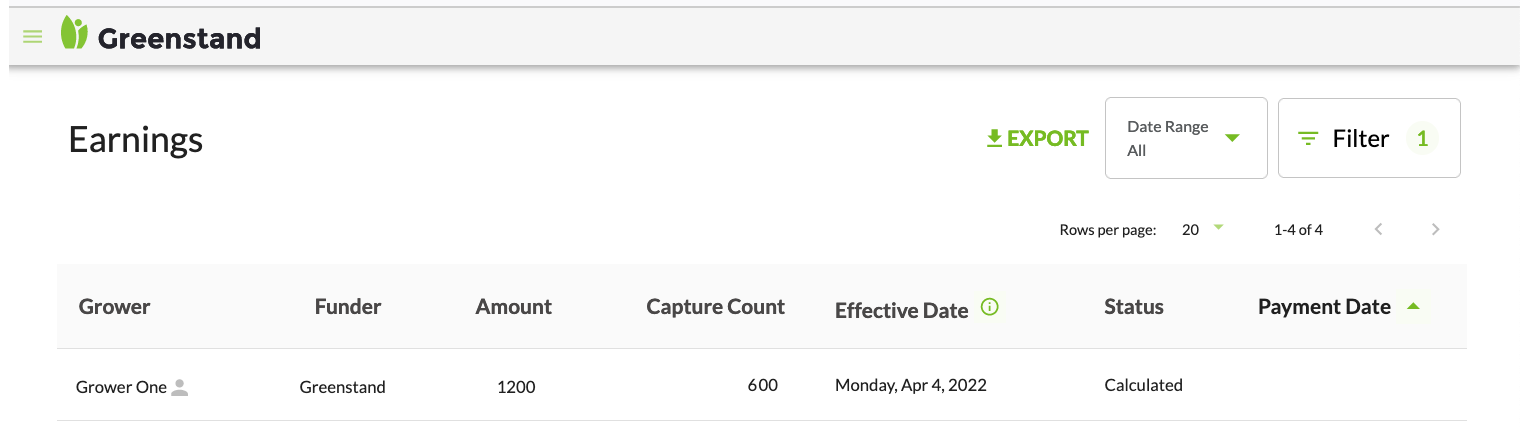
Here is how to export a typical selection of growers' earnings data:
1. Direct your web browser to the Earnings tool and log in with the name and password you received from Greenstand.
2. Select a subset of records.
Typically, you want only records that await your payment: Click on
You can also select records by the name of the managing organization, or by grower.
Organization: Select a name from the menu.
Grower Phone Number, Name: Enter all or part of a number or name. If you enter both, the filter ignores the number and sorts by the name only.
3. Click
4. Select records by date, if you wish: Click on
Date selection works on the table's
5. Copy the data to your machine: Click
The selected data is saved to a local file. That's all the selected data, not just the rows displayed on the current page. Exactly where data is saved, with what name, varies with your machine and your browser configuration.
Most likely, the files automatically goes to a
6. Process that data as you see fit.
The file is in standart CSV format (comma-separated values). That means plain text, one record per line, with values surrounded by "quotation marks" and separated by commas. The first line presents the field names, rather than values.
You can import the file into your spreadsheet or accounting software, or read it with a text editor.
Example exported file:
"earnings_id","worker_id","phone","currency","amount","captures_count","payment_confirmation_id","payment_method","paid_at" "b86f5e05-4277-4221-8111-d7a7cfb5da2f","3257d56f-c4a9-484f-9658-0776efe5331b","123-123-1234","SLL","200","61","","","" "204942dd-6bcf-4445-8d82-d83645bae760","3257d56f-c4a9-484f-9658-0776efe5332b","123-123-1234","SLL","200","62","","","" "433361ba-2f71-4f84-9d4b-4d1b75e581c9","3257d56f-c4a9-484f-9658-0776efe5333b","123-123-1234","SLL","260","63","","","" "c9ae6b11-cecd-4f4d-800d-9772c9209cdf","3257d56f-c4a9-484f-9658-0776efe5334b","123-123-1234","SLL","320","64","","",""
Post a Payment
You can use the Earnings display to record a payment made, as follows:
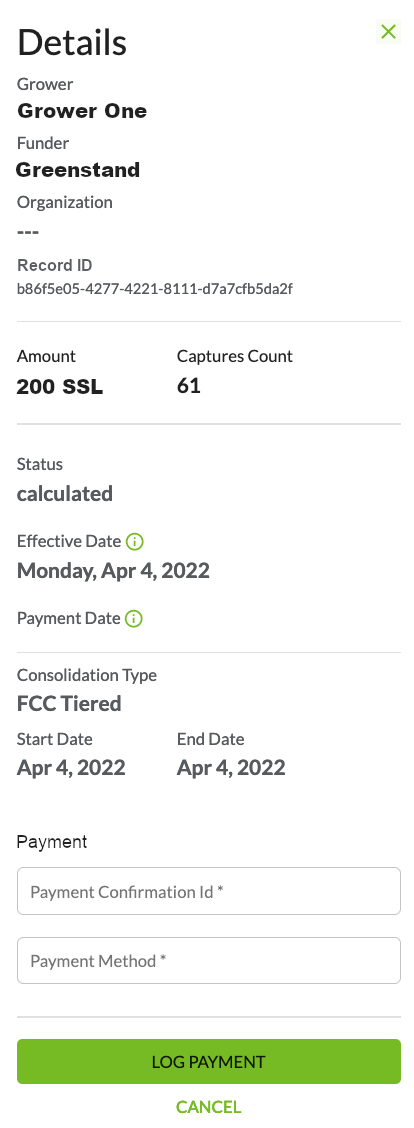
1. Click on the record in question.
You see a details dialogue for that record.
2. At the bottom of the dialogue, enter an ID and method.
The
The
3. Click
The dialogue closes. The
Post Multiple Payments
You can record multiple payments by uploading a file of CSV data.
Provide all the same fields that occur in exported earnings data, in the same order.
Write one complete record per line. Surround values with "quotation marks." Separate values with commas.
Do include the field names in line 1.
Write the final value of each record, the
At its simplest, the process goes like this:
1. Export a file of Greenstand earnings data, as described a href='#getearn'>above.
2. Edit the file to supply the three values missing from end each record:
3. Save the file.
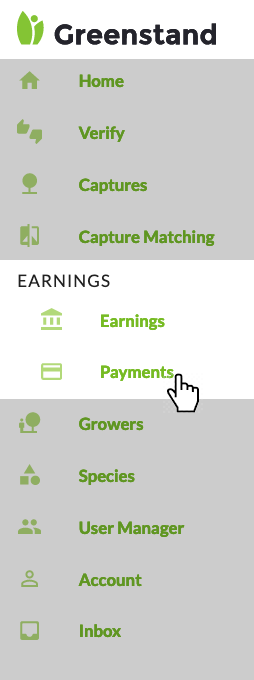
4. Go to the Payments table in the Greenstand administration panel:
To get there, change the URL in the browser or navigate the Greenstand panel's menu.
5. Click
If all goes well, the message reads
Example of file to upload:
"earnings_id","worker_id","phone","currency","amount","captures_count","payment_confirmation_id","payment_method","paid_at" "b86f5e05-4277-4221-8111-d7a7cfb5da2f","3257d56f-c4a9-484f-9658-0776efe5331b","123-123-1234","SLL","200","61","payID01","Visa","2022-04-05" "433361ba-2f71-4f84-9d4b-4d1b75e581c9","3257d56f-c4a9-484f-9658-0776efe5333b","123-123-1234","SLL","260","63","payID02","Visa","2022-04-05" "c9ae6b11-cecd-4f4d-800d-9772c9209cdf","3257d56f-c4a9-484f-9658-0776efe5334b","123-123-1234","SLL","320","64","payID03","Visa","2022-04-05"
back-to-top